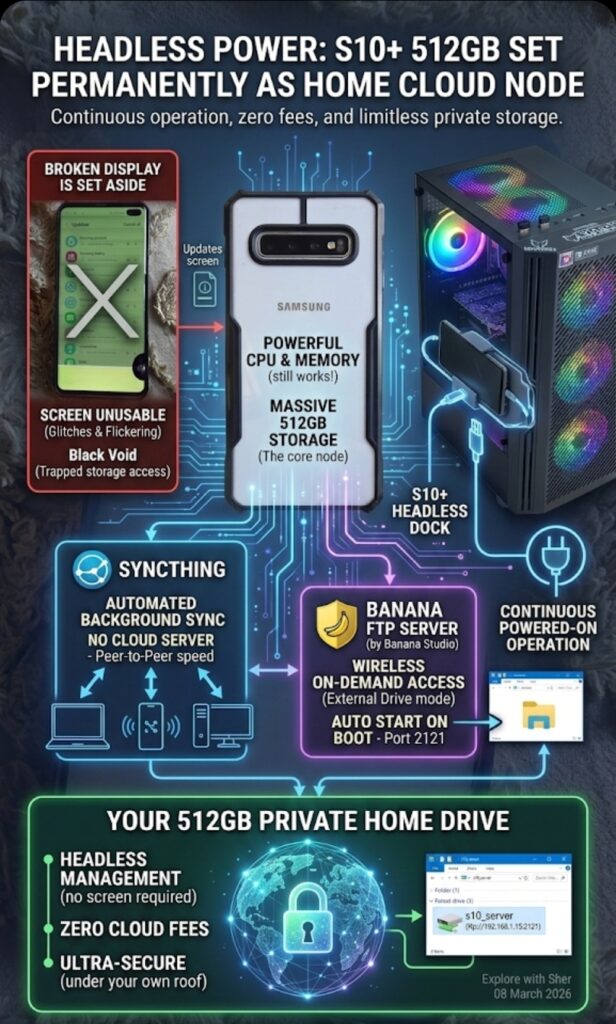
Stop paying for cloud storage and build a 512GB personal powerhouse
Let us be honest. We all have that drawer. The drawer of “retired” electronics.
In my drawer sat a Samsung Galaxy S10 Plus 512GB. On paper, this phone remains a monster: a high-end processor, massive memory, and that jaw-dropping 512GB internal drive. It costs hundreds to buy this capacity new.
There was only one problem. The screen was shattered. Sometimes it flashed; sometimes it worked briefly; most of the time, it was a paperweight. It was functionally useless as a traditional mobile device.
But it was not dead.
I grew tired of hitting Google’s miserly 15GB free storage cap. Every time I wanted to back up photos from my desktop or laptop, Google demanded a monthly subscription fee. I had 512GB sitting right there in my drawer, but I could not access it because of the damaged glass.
I decided to stop treating it like a phone and start treating it like a server.
The result? I built my own private, blazing-fast, completely free localized “Google Drive” alternative using nothing but that broken hardware and two open-source applications. I never have to touch the screen, and my laptops sync to it seamlessly over my home Wi-Fi network.
If you possess an old flagship with a massive drive but a bad display, do not throw it away. You are sitting on a gold mine. Here is exactly how I accomplished this, step-by-step, so you can do the same.
Understand why the S10+ is perfect hardware
Even with a cracked screen, the S10 Plus is overqualified for this role. It features:
- A powerful CPU and RAM: It easily handles multiple incoming data streams from your other devices without breaking a sweat.
- A dedicated cooling system: Unlike cheaper phones, this architecture runs continuously without melting.
- Samsung DeX support: If you ever require direct access to the phone interface, you can plug it into a TV or monitor with a USB-C to HDMI adapter and use it like a desktop computer, totally bypassing the broken screen.
Establish a headless home cloud storage goal
We are going to configure this phone to operate “headless”—meaning it runs without a visible display or user interaction. Our target architecture is this:
- Phone (S10+): Acts as the 512GB network-attached storage unit, permanently plugged into power.
- Laptops/Desktops: Automatic background syncing of major folders (just like Google Drive) when on the same Wi-Fi.
- On-Demand Access: A way to browse the entire 512GB drive directly from Windows File Explorer without plugging in a physical cable.
Defeat the screen timeout using developer options
The most difficult phase is the initial setup. You must interact with the screen long enough to execute this configuration. If your screen only works intermittently, prioritize this step. We need to ensure the phone never sleeps when plugged in, which would otherwise disconnect our active servers.
- On the S10+, open the main Settings application.
- Navigate to About phone, and then select Software information.
- Find the Build number entry and tap it rapidly seven times. You will see a notification confirming that developer mode is enabled.
- Return to the main Settings menu. A new option named Developer options will appear at the bottom. Tap it.
- Find the toggle for Stay awake and turn it on.
The device will now permanently keep the screen active as long as it receives continuous power from a charger.
Configure the 512GB private cloud using Syncthing
We will deploy Syncthing, an incredible open-source, peer-to-peer file synchronization tool. It is entirely free and bypasses corporate cloud servers entirely, sending data directly between your devices on your own network.
Set up the phone node
- Open the Google Play Store on your S10+ and install Syncthing (developed by the Syncthing Foundation).
- Launch the application and grant the requested storage permissions. This is critical for it to write incoming files to your drive.
- Tap the hamburger menu in the top-left corner and select Settings.
- Tap Behavior.
- Check the box for Start service automatically on boot. This ensures your cloud starts automatically if your phone reboots following a power failure.
Apply the mandatory Samsung fix
Samsung aggressively terminates background apps to preserve battery life. We must disable this behavior, otherwise your cloud connection will constantly drop.
- Navigate to your phone’s main Settings, and select Apps.
- Locate Syncthing in the list and tap it.
- Tap Battery.
- Change the power management setting to Unrestricted.
Pair the devices and create folders
- Download and install Syncthing on your Windows PC or laptop directly from the official website.
- Run the application. It will launch its administrative interface in your default web browser.
- Establish trust between the devices. On the PC interface, click Add Remote Device located in the bottom right corner. It will likely detect your S10+ on the local network automatically. If it fails, open the phone application, tap the hamburger menu, select Show ID, and type that character string into the PC prompt.
- Create the synchronization directory on the PC by clicking Add Folder in the top left corner.
- Assign it a clear name, such as “Personal Cloud”. For the folder path, choose the location on your hard drive you wish to back up.
- In that same pop-up window, click the Sharing tab. Check the box next to your paired device to authorize the connection, then click Save.
- Check your mobile device. A notification will appear asking if you want to accept the incoming folder share. Tap to accept. The system will ask where on the 512GB drive you want to store these synced files. Select a destination path and confirm.
Success! Any document or photo you drop into that designated folder on your PC instantly mirrors onto your S10 Plus storage. This perfectly replicates the Google Drive experience, but operates faster, remains highly secure, and provides 512GB of capacity for free.
Enable wireless on-demand file access using Banana FTP
Sometimes you do not want a constant background sync. You may simply want to pull an isolated file, stream a video, or reorganize a directory directly on that massive 512GB drive from your computer, acting exactly like an external USB stick over Wi-Fi.
To achieve this, we must configure the phone to operate as an FTP server.
Configure the FTP server application
Because some older tools lack automated background booting, the optimal application currently available is FTP Server, developed by Banana Studio.
- Open the Play Store on your S10+ and install FTP Server by Banana Studio.
- Open the application and grant the comprehensive storage permissions it requests.
- On the application’s home dashboard, check the box labeled Enable automatically start on boot.
- Navigate to the user management settings within the application to establish security. Create a custom Username and Password. Do not skip this critical step, as an open server exposes your entire file system to anyone connected to your Wi-Fi network.
- Locate the port configuration setting and change it to
2121. This bypasses standard Android network restrictions that block standard lower-tier ports. - Ensure you disable battery optimization for this application as well by navigating to Settings > Apps > FTP Server > Battery, and selecting Unrestricted.
- Tap the main start button in the application. Note the address it broadcasts, which will look similar to
ftp://192.168.1.15:2121.
Map the drive in Windows File Explorer
We will link this server address directly to the Windows operating system so it permanently appears as a native hard drive.
- Open File Explorer on your Windows desktop.
- Click This PC in the left navigation menu.
- Right-click anywhere within the empty white space of the main window.
- Select Add a network location from the context menu.
- A setup wizard will launch. Click Next, choose Choose a custom network location, and click Next again.
- In the address field, type the exact FTP address displayed on your S10+ screen.
- Uncheck the box labeled Log on anonymously. Enter the Username you created in the mobile application, and click Next.
- Provide the location a highly recognizable name, such as “S10 Network Drive”, and complete the wizard.
- Windows will immediately attempt to open the new directory. It will prompt you for your Password. Enter it and check the box to save the password for future sessions.
You will now see that network drive permanently listed under This PC. When the phone is powered on and connected to your network, you can double-click it and wirelessly drag and drop files to that 512GB storage at high speeds, completely bypassing the broken screen.
Perform post-setup maintenance for long-term reliability
Because the S10 Plus now serves as permanent infrastructure, apply these rules to ensure it remains safe and reliable:
- Activate battery protection: If your screen allows, navigate to Settings, select Battery and device care, tap Battery, select More battery settings, and toggle Protect battery to the enabled position. This limits the maximum charge to 85 percent, which drastically reduces thermal wear and physical cell bloating on a device permanently tethered to power.
- Establish a static IP address: When your home router reboots, the phone’s IP address might change dynamically. This action immediately breaks your mapped drive shortcut in Windows. Log into your home router’s administrative dashboard, locate the DHCP reservation settings, and instruct the router to always assign the S10 Plus the exact same IP address.
Stop paying and start repurposing
This S10 Plus, a device valued at perhaps $50 in its broken state, now performs a role that commercial hardware costing hundreds of dollars executes, simultaneously saving me recurring money on cloud storage subscriptions.
I possess a blazingly fast 512GB private cloud for my home network. I never interact with the damaged display, and my personal data remains securely under my own roof.
If you have a powerful flagship smartphone trapped behind damaged glass, liberate it. Repurpose that CPU and storage capacity. Turn your “trash” into your next powerhouse server.
Did you find this guide useful? We would love to know! Which old phone are you turning into a local cloud? Tell us in the comments!